
Enable or Disable Layouts
A Template Set typically contains multiple Layouts. To make it easier to work with Layouts on the Content Editor, you can hide unneeded Layouts by disabling them.
To enable or disable Layouts:
-
Navigate to the Details screen for the desired asset. For example, if you need to define the content for a specific Offer, you would navigate to the Offers screen, then search for and select the desired Offer to view the Offer Details screen.
-
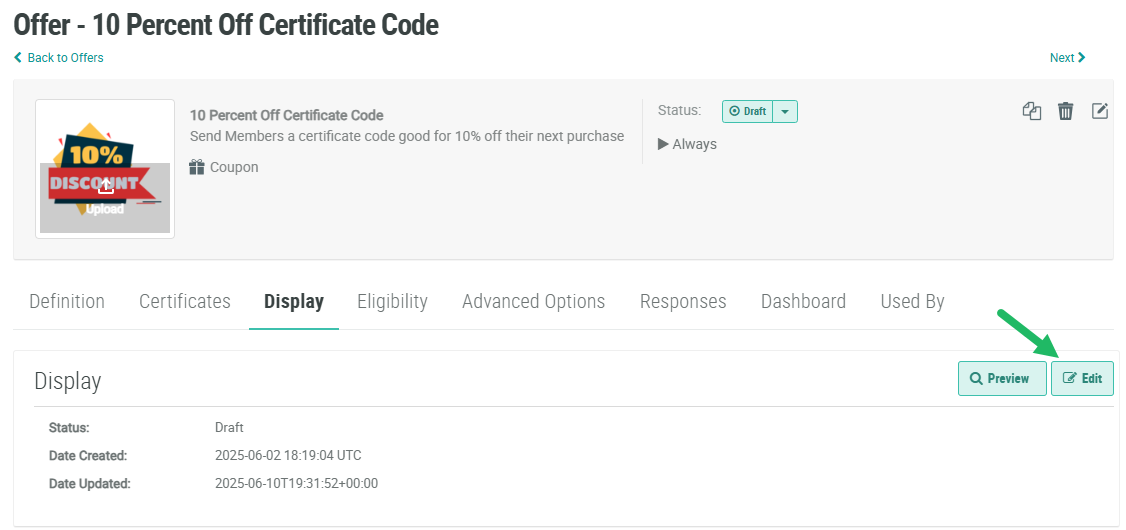
From the Details screen of the desired asset, select the Display tab.
-
Click Edit. The Content Editor is displayed in a separate browser tab or window.
-
Optionally select the desired Template Set (see
-
Within the Menu Bar, click the Layout icon. The Layout selector pop-up window is displayed. This window lists all of the Layouts in the currently selected Template Set.

-
To disable a Layout, uncheck the check box next to its name. Conversely, to enable a Layout, check its check box.
-
Click Done.
